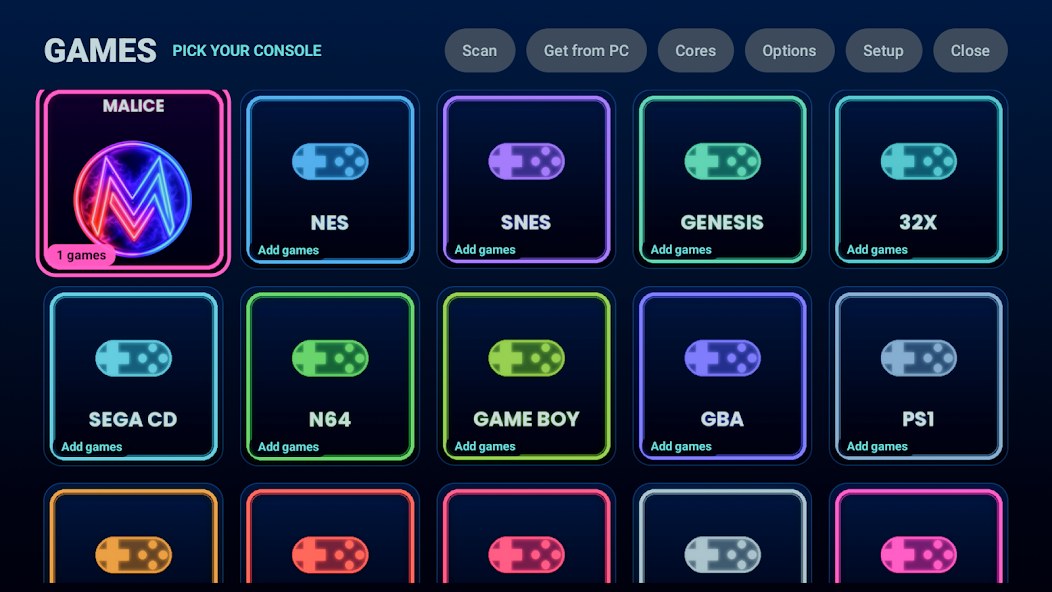
MaliceTV includes a built-in retro game player. You add your own emulator cores and game files, and it plays them right on the big screen — plus a row of Malice Games: original titles we made, playable straight away with no setup.
How to set it up ↓
What it is
MaliceTV doesn't include or host any emulators or games. It runs standard libretro cores that you supply, loading the game files you supply — the same bring-your-own idea as the app's video sources.
Setup
Everything goes on a USB drive (or the box's internal storage) inside MaliceTV's own folder — no special permissions, nothing to configure.
Cores must match your box's CPU build. Open the Games screen in the app — it tells you exactly which one to use: armeabi-v7a or arm64-v8a. Many TV boxes (including the Onn) run 32-bit Android even on 64-bit chips, so they need armeabi-v7a.
Download the matching cores from the libretro buildbot:
• 32-bit → …/latest/armeabi-v7a
• 64-bit → …/latest/arm64-v8a
Each core is a *_libretro_android.so file inside a .so.zip — drop the zip in and the app unzips it for you. Wrong CPU build = the game won't load, and the app will tell you.
Copy the .so (or .so.zip) files here, on your USB drive or internal storage:
Put each system's game files in its own sub-folder so nothing gets mis-detected:
Android/data/com.malicetv.app/files/roms/<system>/Folder names: nes, snes, genesis, gb, gbc, gba, ps1, n64, psp, arcade, and more. Example: roms/snes/Chrono Trigger.sfc
Multi-disc games: make a text file listing the discs (one .cue per line) and save it as Game.m3u in the same folder. It shows as a single game, and in-game you swap discs with L1 + R1 on the controller.
Some systems need a BIOS to run — PlayStation 1, Sega CD, PSP, Neo Geo, Dreamcast. Drop those BIOS files here (you provide them):
Android/data/com.malicetv.app/files/bios/Cartridge systems (NES, SNES, Genesis, Game Boy…) don't need a BIOS. Sub-folders are preserved for cores that expect them.
Want box art on the cards? Drop a .png named like the ROM into the matching art folder:
Matching is forgiving — case, punctuation and region tags are ignored, so art/nes/Super Mario Bros.png matches roms/nes/Super Mario Bros. (USA).nes. No art? The card just shows the title.
On the box, open the Games button in the top bar and press Scan for cores / games. Your library fills in, grouped by system, with your cover art. Pick a game to play.
In-game controls: Back saves & quits (resumes where you left off next time) · Select + Start toggles fit-to-screen · L1 + R1 swaps disc on multi-disc games.
Easiest way: open the Games screen on the box once — it auto-creates all these folders on your USB drive and shows the exact paths. Then plug the USB into a computer, open the drive, and drop your cores and ROMs straight into the ready-made folders. No permissions, nothing to configure.
What runs well
Streaming boxes are modest hardware, so this shines on classic systems and stops around the early-3D era.
NES, SNES, Game Boy / Color / Advance, Genesis / Mega Drive, Master System, Game Gear, TurboGrafx-16, Atari 2600 / 7800 / Lynx, Neo Geo Pocket, WonderSwan, classic arcade, and PlayStation 1.
Nintendo 64, Nintendo DS, PSP, and Dreamcast. Many titles run well; heavier ones may need lower settings. That's emulation, not the app.
GameCube, Wii, PlayStation 2, 3DS, and anything newer need far more powerful hardware than a streaming box.
MaliceTV is a neutral player. It includes no emulators, BIOS, or games, and doesn't host or link to any. What cores and game files you add, and where you get them, is up to you and your local laws.